Use passkeys
Who: Signed-in people with an account, not secure-link sessions.
A passkey lets you sign in using your device's screen lock, fingerprint, or a security key. Your browser and device handle the verification prompt.
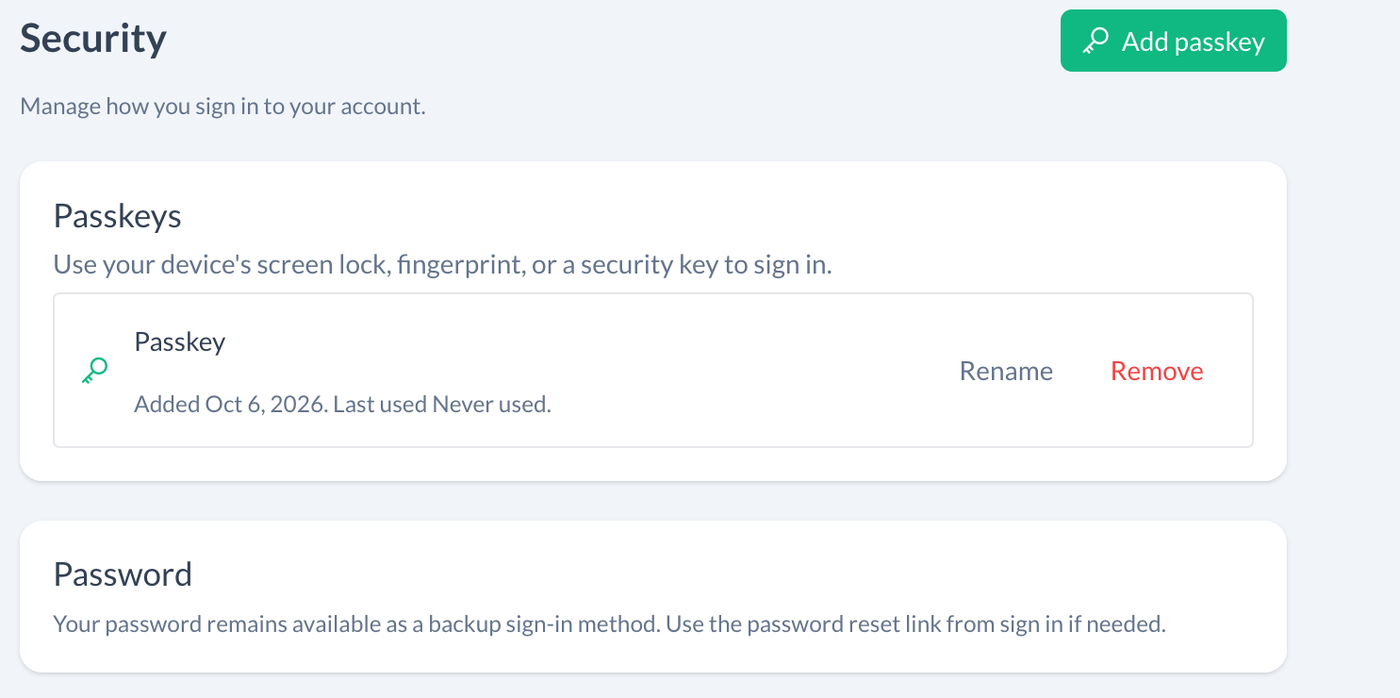
Add a passkey
- Sign in to your portal account.
- Open the user menu and choose Security.
- Select Add passkey.
- Follow your browser or operating system's prompt to choose where to save it and verify yourself.
- Confirm that the new entry appears under Passkeys.
You may also be offered passkey enrollment after initial account setup. Use a compatible browser and a secure connection. If Add passkey is disabled, check the message on the page.
Sign in with a passkey
On the sign-in page, use the passkey option and follow the device prompt. Choose the credential associated with this portal and account. Availability on other devices depends on whether your passkey provider syncs it or supports using another device.
Rename a passkey
In Security, select Rename, enter a recognizable name such as Work laptop, and Save. Naming helps distinguish credentials; it does not move the passkey to another device.
Each entry shows when it was added and when it was last used, if available.
Remove a passkey
Select Remove beside the intended entry and confirm. That credential can no longer be used to sign in to the account. Make sure you can use another registered passkey or your password before removing the credential you normally rely on.
If the prompt does not work
- Confirm you are using the correct portal address.
- Check that your browser and device support passkeys and that the page uses a secure connection.
- If you cancel the prompt, you can retry or sign in with your password.
- If your device or key is unavailable, use another registered credential or reset your password.
Once you regain access, remove credentials you no longer use.