Preview and download files
Who: People with view permission for the file or folder, including recipients of View & download or View, download & upload links.
Preview a document
- Open the client workspace and find the file.
- Select the filename or choose Preview from its actions.
- Use the viewer's available controls to inspect the document.
- Return to the file list when finished.
Preview behavior depends on the file type and browser. The app has viewers for PDFs, images, text, and audio; a file without a supported preview can be downloaded and opened in an appropriate application.
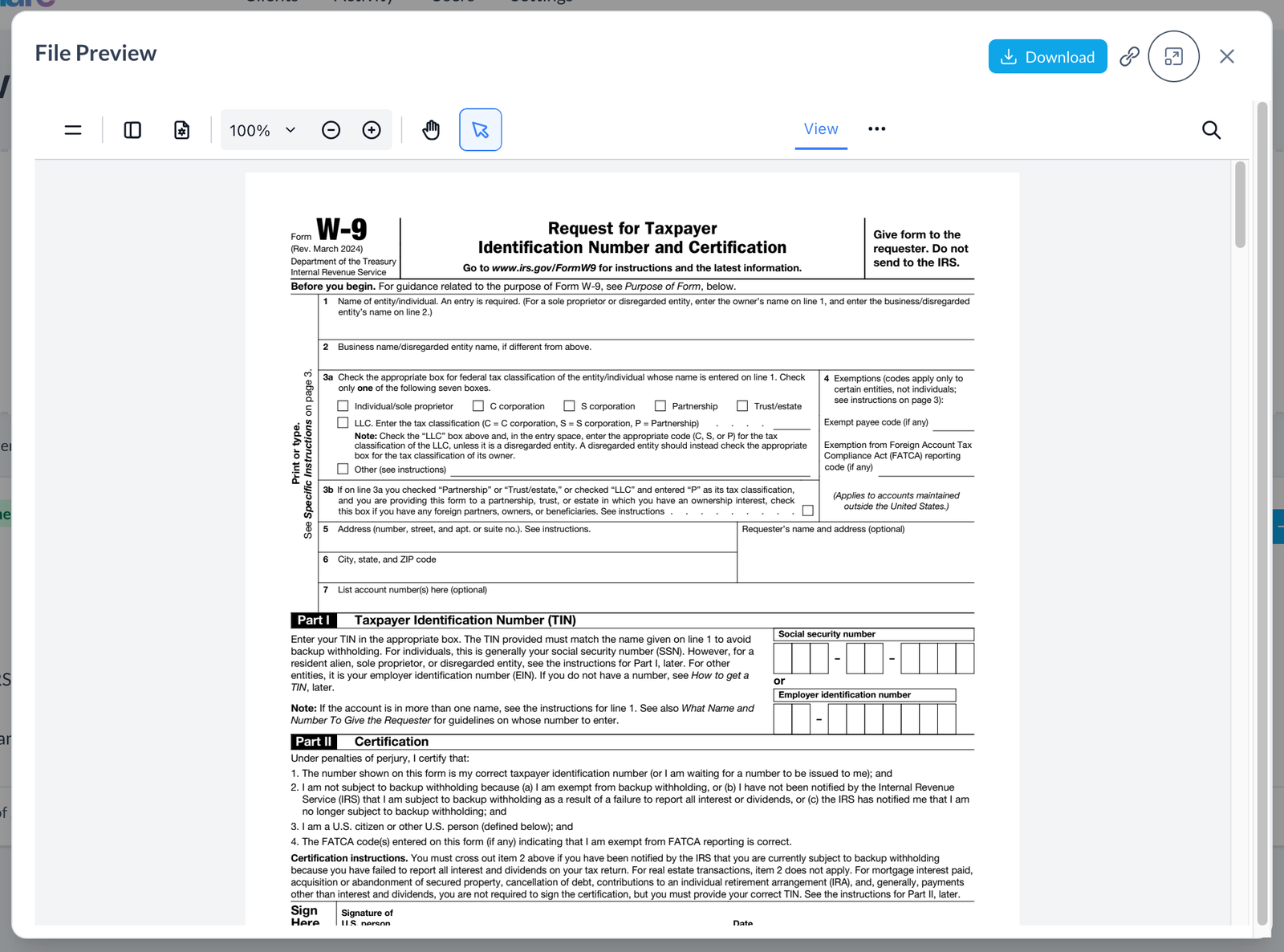
Download a file
Use the row's download icon, or open More (three dots) and select Download. Row icons appear when you hover or focus a row, and on touch devices. On narrow screens, use More for actions that are not shown alongside the filename.
Your browser saves the file according to its download settings. Check its downloads list if you do not see the file immediately.
Download a folder as ZIP
Use Download ZIP from the folder's More menu, or its download icon where shown. Open the downloaded ZIP on your device to access its contents. Large folders may take longer to prepare.
When a preview or download is unavailable
- Uploads only: the link does not allow reading or downloading documents. Ask the sender for read access if needed.
- Unsupported preview: download the file and open it locally.
- Missing file or access error: return to the workspace and refresh; the file may have been removed or your access may have changed.
- Expired link: ask the sender for a replacement link.
Downloading creates a copy on your device. Later changes to the portal document or link do not update or remove that copy.